
Notes, written while you read
You've just finished a dense lesson. Instead of stopping to retype the key points, you can ask the AI tutor to do it — in one sentence. It already has the entire lesson open as context, so the notes it writes are about this concept, saved straight into this lesson's notebook, in seconds. Not a generic summary scraped off the web — the exact material you're studying, distilled and ready to review.
That turns the slow part — getting words onto the page — into a single request, and leaves you the part that actually builds memory: reviewing the notes and shaping them into something that sticks.

How it works
Open a lesson and click Ask AI
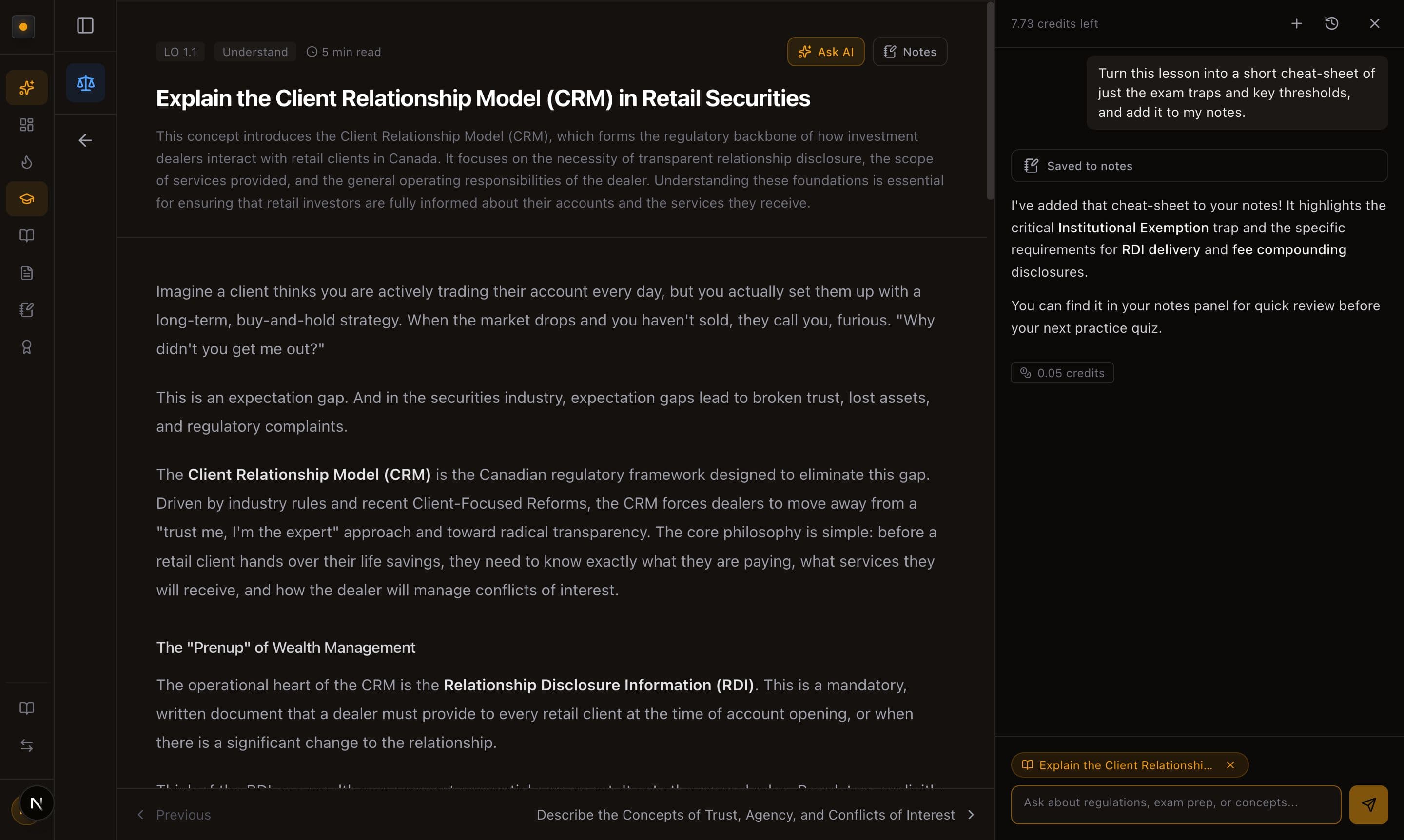
On any lesson, click Ask AI in the top-right. The lesson attaches automatically — you'll see it as a pill just above the message box — so the tutor knows exactly what you're reading without you explaining it.
Ask it to write the notes
Type what you want in plain language and send. The tutor writes the notes and saves them to this lesson's notebook — you'll see a Saved to notes confirmation right in the chat the moment it's done.
Open Notes and make them yours
Switch to the Notes panel and the summary is there, fully formatted, added to anything you'd already written. Now make it yours — trim what you know, bold the exam traps, add your own shorthand. The AI gives you the scaffold; the editing is what makes it stick.
How to prompt it
"Summarize this lesson" works — but the notes get much better when you tell the tutor three things:
- The format — a short summary, a cheat-sheet, a comparison table, a mnemonic, a checklist.
- The focus — just the testable thresholds, the common exam traps, the difference between X and Y, only the numbers and deadlines.
- The save — end with "…and add it to my notes" so it writes straight into this lesson's notebook instead of just printing in the chat.
Put those together and you get exactly the cut you want. A few you can copy and adapt:
- "Summarize this lesson into concise study notes and add them to my notes."
- "Turn this lesson into a short cheat-sheet of just the exam traps and key thresholds, and add it to my notes."
- "Give me a mnemonic for these requirements and save it to my notes."
- "Make a comparison table of the account types covered here and add it to my notes."
- "Pull out only the numbers and deadlines I need to memorize, and add them to my notes."
It's a conversation — keep going
Not quite right? Just reply in the same chat: "make that tighter," "add the exception cases," or "now turn it into a quiz I can self-test with." Ask for the cut you want, then trim the result in your notebook. Two minutes of shaping and you've got notes you actually understand.
A couple of things to know
Best moment to do this
Do it right after you finish reading, while the lesson is fresh. Capture the key points with the tutor, spend two minutes editing, and move on — you'll leave with notes you helped write instead of a wall of text you'll never reread.
It's still your notebook
The AI appends to your notes — it never overwrites what you've already written (you can see it stack a new summary under your existing notes). Everything it adds is normal, editable text: change it, reorganize it, or delete it like anything else. See Notes for the editor basics.
Asking the AI uses credits
Each reply costs a small number of AI credits — you'll see the exact cost under every answer and your balance at the top of the chat. Summarizing a lesson is one of the cheaper, higher-value things you can spend them on. See AI Credits Explained for how the budget works.