
The interface gets out of the way
When you start a quiz, the dashboard sidebar disappears. No navigation links, no AI tutor button, no notifications — just the question, your options, and a timer. We designed it this way because the real CIRE gives you the same thing: a question, four choices, and a clock. Anything else is a distraction.
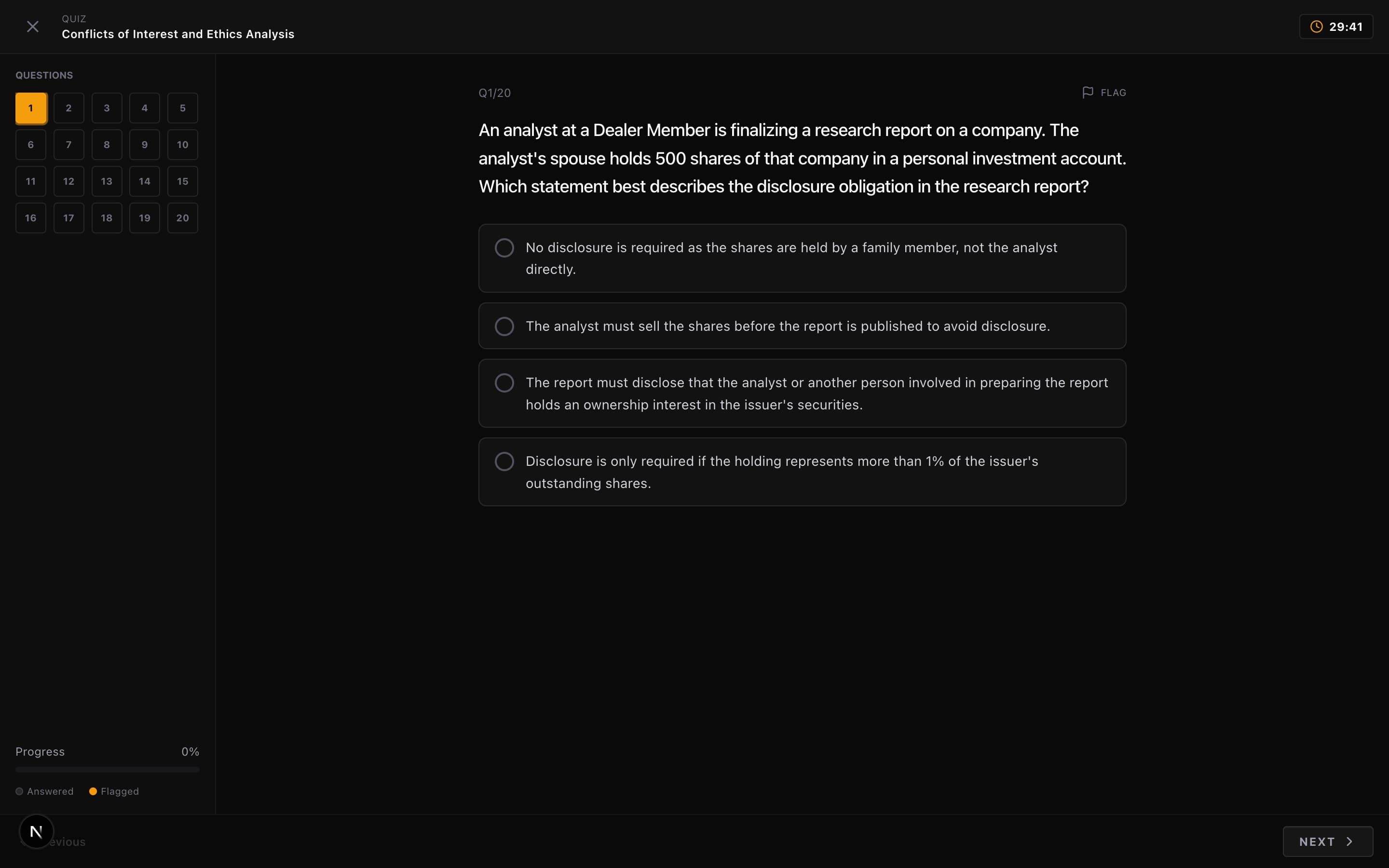
The question grid on the left shows every question as a numbered tile. The current question is highlighted in orange. Tiles fill in as you answer — at a glance, you can see how many questions are done and how many are still open. At the bottom, a progress bar and a legend distinguish between answered questions and flagged ones.
Answering and changing your mind
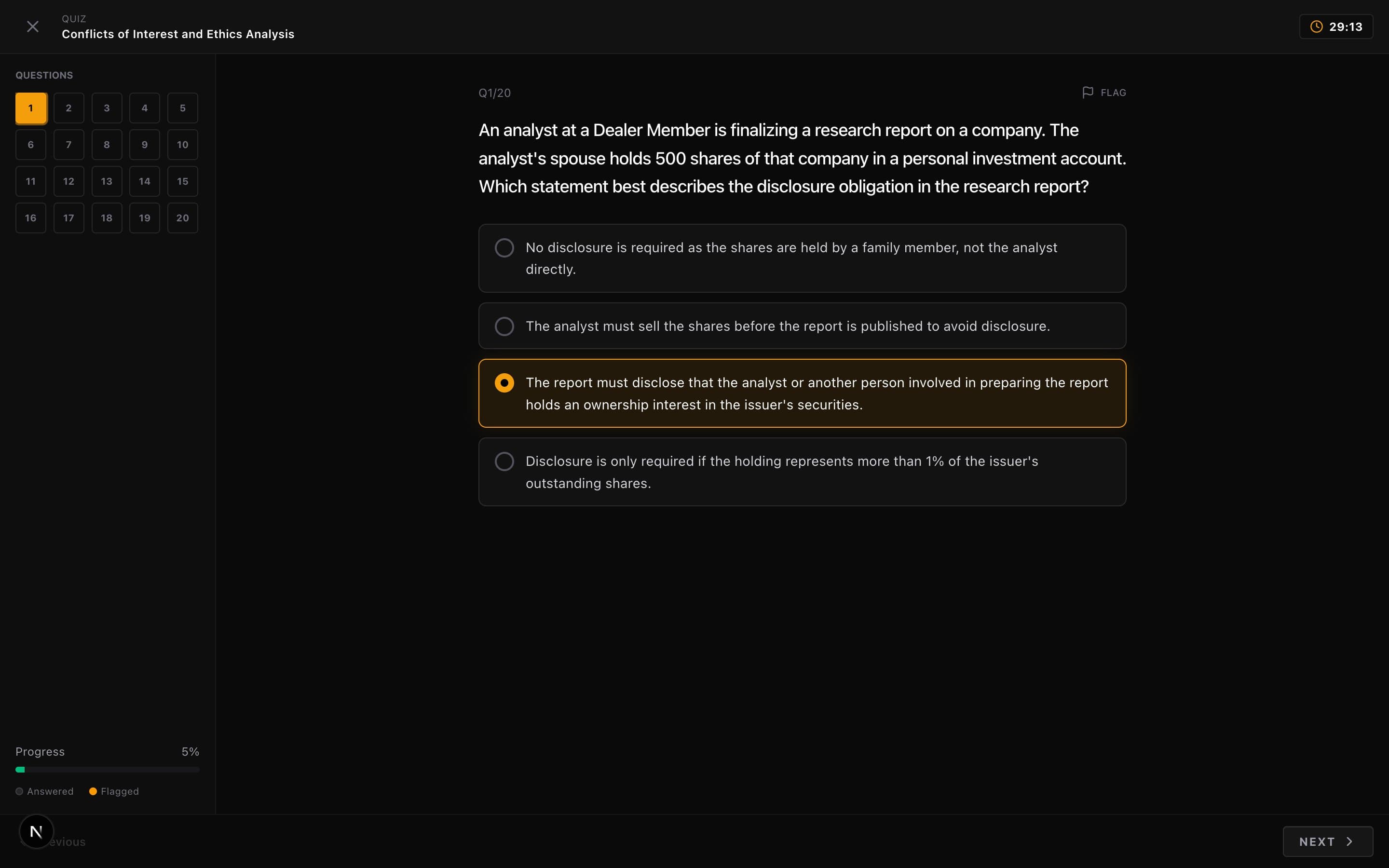
Click an option to select it. It highlights with an orange border so you know it registered. Changed your mind? Click a different option — your previous selection swaps out instantly. No confirmation dialogs, no "are you sure?" prompts. The interface trusts you to make decisions, just like the real exam does.
There's no penalty for wrong answers on the CIRE — a blank answer and a wrong answer both score zero. This changes your strategy entirely. Never leave a question blank.
Eliminate, then guess
Four options means a 25% chance of guessing right. Rule out two and you're at 50%. That's not guessing — that's strategy. Practice the elimination habit here so it's automatic on exam day.
Flagging: the skill nobody teaches you
Most study tools don't have a flag button. The CIRE exam does. EnCiro does. And knowing how to use it is the difference between finishing comfortably and running out of time with 15 questions still open.
Here's the problem flagging solves: some questions take 30 seconds, others take 3 minutes. If you spend 3 minutes stuck on question 4 while 16 more are waiting, you've created a time deficit you can't recover from. Worse, you might get it wrong anyway — you were stuck for a reason.
Click the FLAG button at the top right of any question. A small amber dot appears on that question's tile in the grid. You've marked it for later without losing your place.
First pass: answer or flag, never stall
Work through every question once. If you know it, answer it. If you're unsure, flag it and move on. The critical discipline is keep moving. Never spend more than a minute on any question during the first pass. The grid shows your flags — you won't forget them.
Second pass: revisit your flags with fresh context
Click any flagged tile in the grid to jump straight to it. Something interesting often happens on the second look: a later question triggers a connection, or your subconscious has been working the problem while you answered other questions. The second pass is almost always more productive than the first stare.
Final pass: decide and clear
Make a decision on every remaining flag. Pick your best answer — even if you're not certain. Remember: blank and wrong score the same. When you submit with flags still active, you'll get a warning showing how many are unresolved — a last chance to reconsider.
This is exam strategy, not just app navigation
The flag-and-return technique is how top candidates manage 120 questions in 3 hours on the real CIRE. Practising it on every quiz here means it'll be second nature when the pressure is real. Don't skip this — it's worth more marks than memorizing one more definition.
The timer
Every quiz has a countdown timer in the top right corner. When it hits zero, your quiz submits automatically with whatever you've answered — no warning, no extension. This mirrors the real exam, where time management is as much a skill as knowing the material.
The timer turns red when you have less than 5 minutes left. If you see red and still have flagged questions, that's your signal to stop deliberating and start deciding.
Auto-submit is real
When the timer runs out, your quiz is submitted with your current answers. Unanswered questions score zero. This is why the flag-and-return technique matters — it ensures you've at least attempted every question before time runs out.
Submitting
Navigate to the last question and click Submit Quiz. A confirmation modal shows you how many questions you've answered and how many are still blank. If you have unanswered questions, you'll see the count highlighted in amber — a nudge to go back and at least guess.
If you need to leave mid-quiz, the X button in the top left opens an exit confirmation. Be aware: exiting discards your progress. There's no "save and resume later." Either finish and submit, or start over next time.
The results page is where the real learning happens. Head to Understanding Your Results to see how to read them.